
Table of Contents
Related Blogs






Most of what you need from an administrator is constant: Where does this group's enrollment stand? Which clients renew soon? What's the census format again?
Until now, most of those answers came from us over email or phone. Your Partner Dashboard moves them into your hands — here's everything that's behind it.
Home Page: Where Your Book Stands
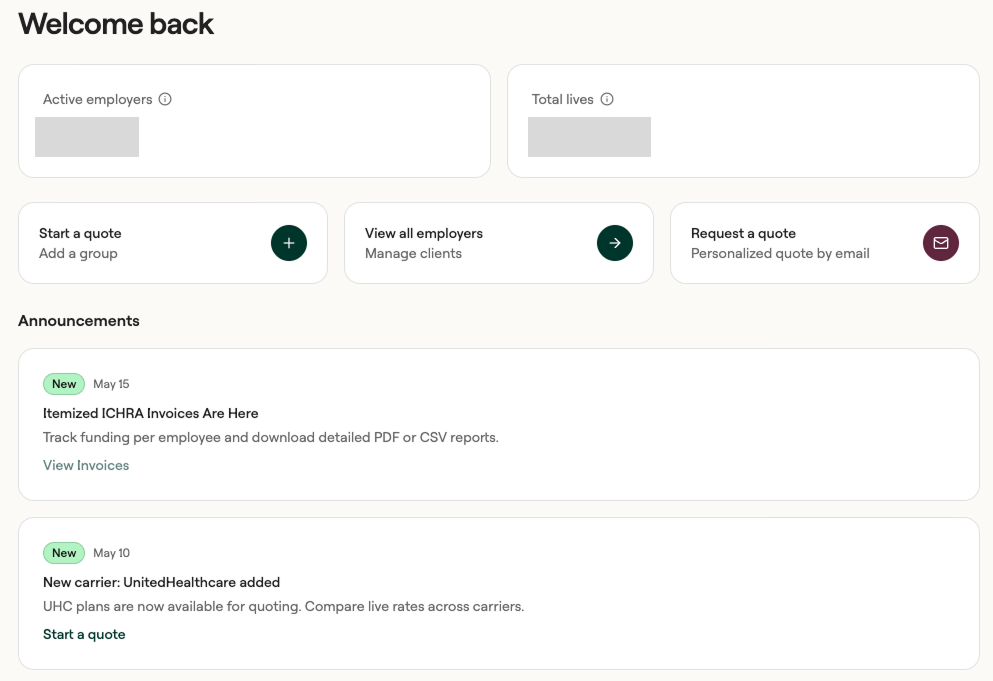
Your landing screen answers two questions: how big is my book, and is anything on fire?
Two counters sit at the top: active employers and total lives. The active employers number counts the groups referred by or accessible to you that are currently active.
Underneath are three shortcuts: Start a quote, View all employers, and Request a quote if you'd rather have us build a personalized one and email it back.
Below that is an announcements feed: new carriers, new features, anything that changes how you sell.
Employers: Your Client List
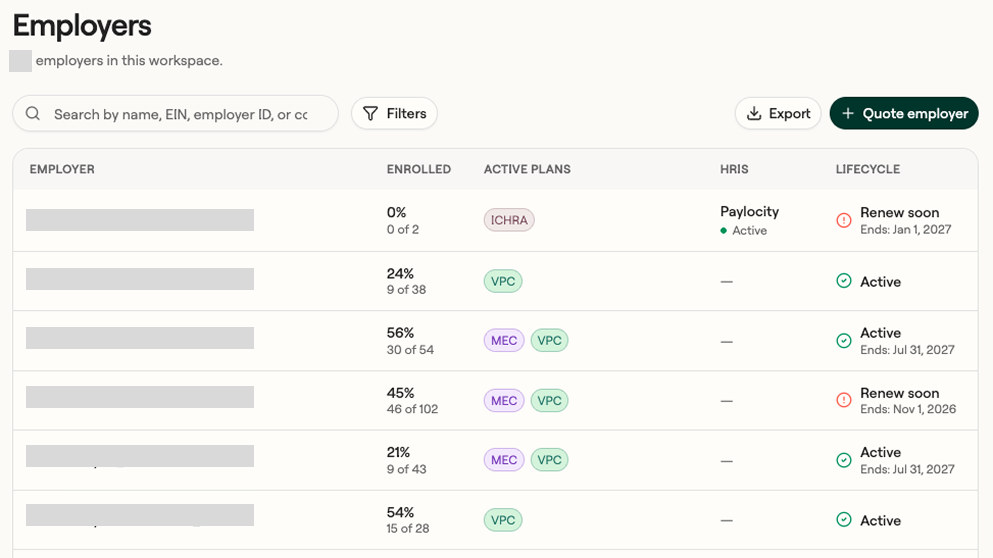
This is the tab you'll live in. See every group you've placed here in one table.
Each row shows you:
- Enrolled: a live participation percentage and the raw count. This tells you instantly which groups need an enrollment push.
- Active plans: badges for every benefit the group has.
- HRIS: which payroll system is connected if any, and whether the connection is healthy.
- Lifecycle: status plus end date. This is a nudge for groups you should reach out to.
Search by name, EIN, or employer ID. Filters slice by plan type, HRIS status, HRIS provider, cancellation, and lifecycle stage.
Lifecycle is the filter worth learning. You can isolate groups that are In OE, Renew soon, Active, Onboarding, or Cancelled. Combine that with the enrollment column and you have a work queue: filter to Renew soon and sort out your upcoming calls.
Export creates a file from the filtered list. Quote employer starts a new quote without leaving the page.
Inside the Client Detailed View
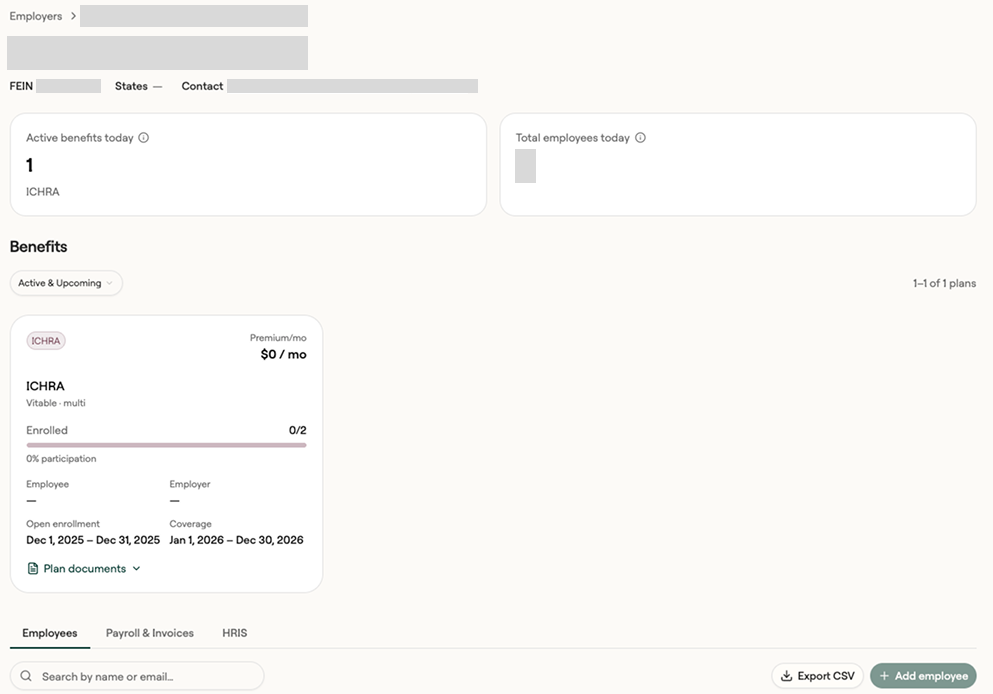
The header carries the practical details — FEIN, states, primary contact email — plus two counters: active benefits today and total employees today (active and inactive).
Then a Benefits section, one card per plan, filterable to Active & Upcoming. Each card shows the monthly premium, enrollment count with a participation bar, the employee and employer contribution split, the open enrollment window, the coverage period, and a plan documents dropdown. If a client has ever asked "when does our OE close again?" mid-call, it's right here.
The Employees tab
Every employee at the group, with contact details, status (active or terminated), classification (full time, part time), and start date. Search by name or email, export the roster to CSV, or add an employee directly — useful for a mid-year new hire when you don't want to wait on a census refresh.
Note: If you have an HRIS system connected, you cannot use the Add an Employee button. The employer must add the new employee via their HRIS system, and the new employee will be brought over to Vitable on the next sync.
Payroll & Invoices tab
Payroll deduction statements, listed by pay period with the run date, employee count, and total — each downloadable as a CSV. The group's payroll frequency is labeled at the top. When a client's HR lead asks what to deduct this month, send them the file yourself.
Invoices, by period, with amount, paid status, and a PDF download. These are itemized, so you can see funding per employee rather than one lump figure.
HRIS tab
Which payroll system is connected, and the timestamp and row count of the most recent sync. If a client says they added someone and you don't see them, check the last sync before you open a ticket.
Members: Find Anyone, Fast
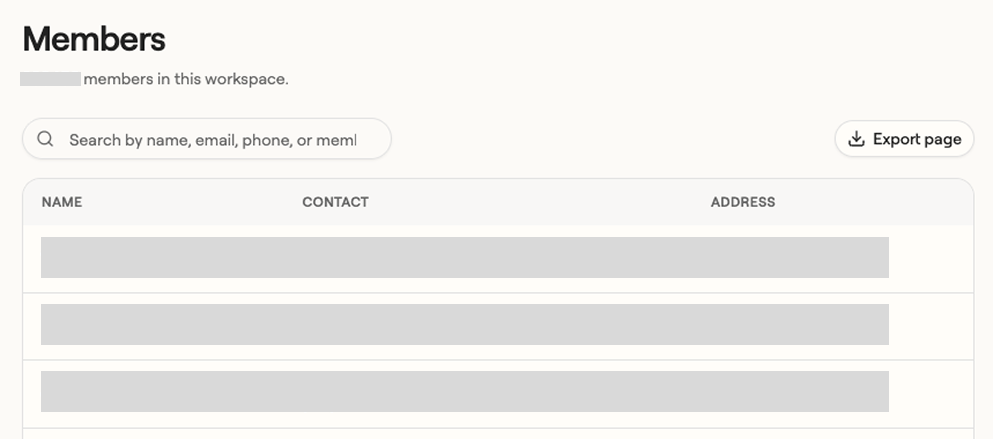
A searchable directory of every member across your book, with contact and address details. When you need to reach one employee, start here.
Quoting: Building the Quote
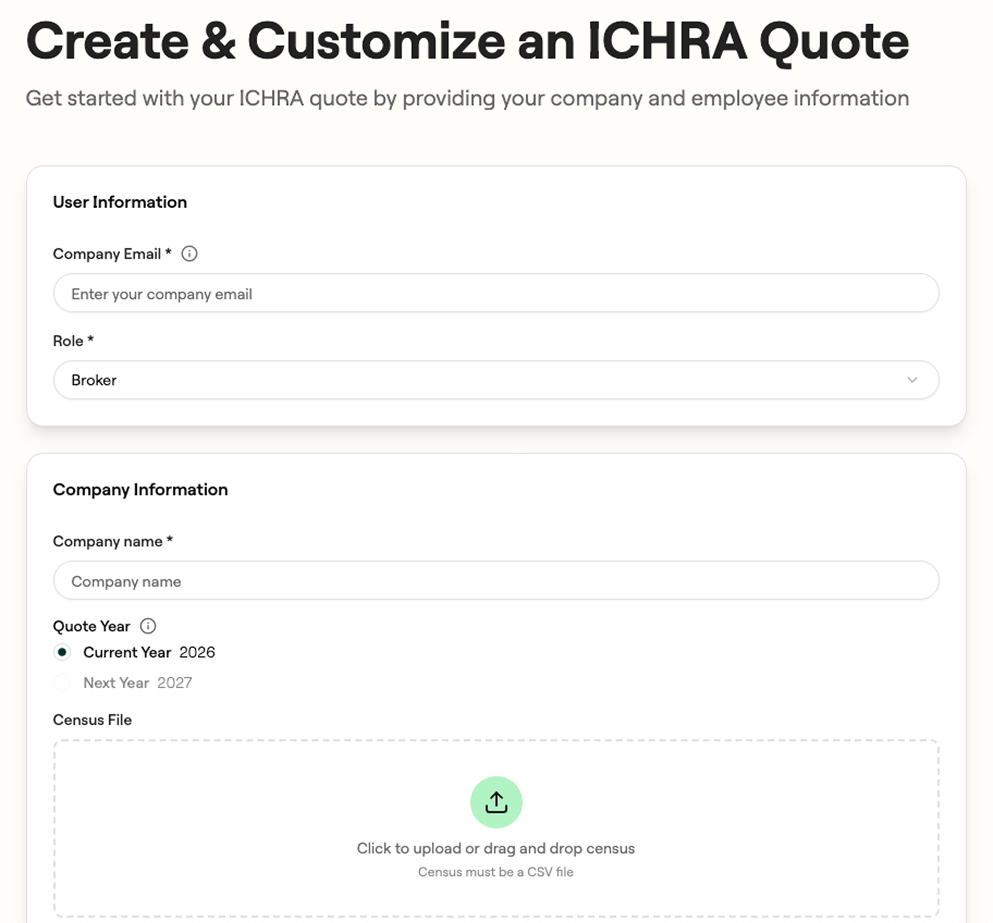
Start with the basics — your email, your role, the company name — then pick the quote year. You can quote the current plan year or next, which matters right now with 1/1/2027 in play.
- Download the template. A CSV with the exact columns required. No other format is accepted, which sounds rigid but saves a round trip.
- Add one row per person. Employees, spouses and children each get their own row. Everyone in a family shares the same employee ID, and only the employee row carries income. Date of birth accepts YYYY-MM-DD or MM/DD/YYYY, zip must be five digits, relationship is Self / Spouse / Child, and yearly income is 0 for spouses and children.
- Upload it. We validate the file before you continue, so a formatting problem surfaces immediately instead of after you've promised the client a turnaround.
Then set your starting parameters: contribution model, metal tier benchmark, Vitable Primary Care on or off, your PEPM (a slider up to $500, plus a fee discount field), and optionally the client's current group health monthly cost so the output becomes a savings comparison rather than a standalone price.
Hit submit and you land on the results page.
Get a quote
Get a personalized health benefits quote tailored to your company’s unique needs.
Ready to learn more?
Stay ahead with the latest insights on healthcare, benefits, and compliance—straight to your inbox.

Download 2025 Employer Guide to ICHRA
Vitable’s ICHRA Guide gives employers a clear, step-by-step resource for building smarter, ACA-compliant benefits.
This guide explains how ICHRAs work, who qualifies, and how Vitable simplifies setup, onboarding, reimbursements, and compliance — while giving employees more flexibility, control, and care.
Download Vitable’s 2025 Broker’s Guide to ICHRA
The Broker Guide to ICHRAs is a comprehensive resource that helps brokers understand, sell, and manage Individual Coverage HRAs with confidence.
This guide covers everything from compliance and class design to administration flows, case studies, and how Vitable streamlines quoting, enrollments, and reimbursements for brokers, employers, and employees.